Navigate to portal.office.com. Once you are there you will be presented with a login screen. Fill in your organization email address.

On the next screen you should see a spot to put your password.

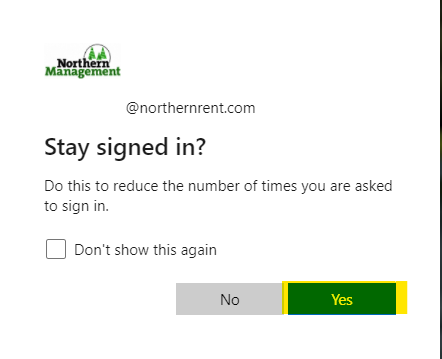
Click on remember your signin information. if you do not do this then you will notice that you have to login to the different office applications multiple times and most of the Single Sign-on features that Office 365 offers will not work correctly.
Once you are logged in you will see a bar on the left hand side that has all of the applications that you have access to:
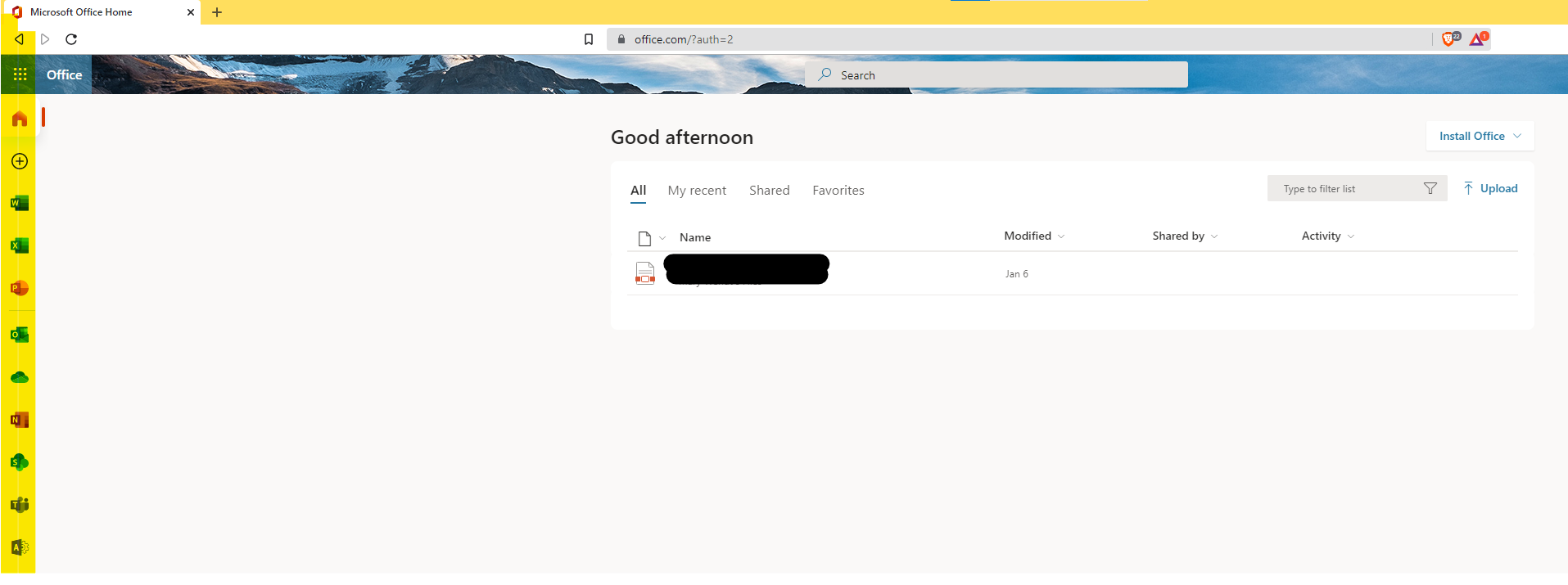
At the top of the bar there are nine little dots call the application launcher. The application launcher has every app, including organization created applications, in it.

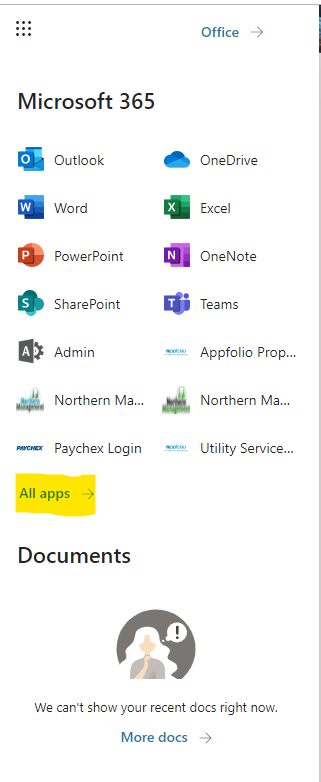
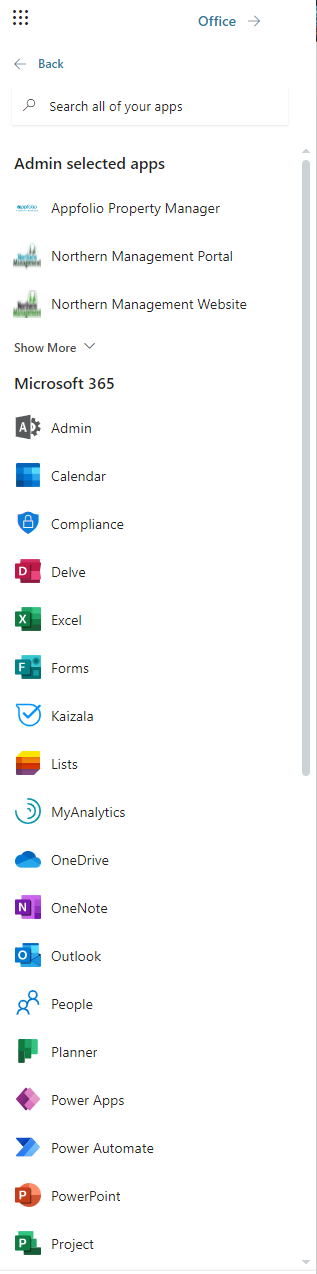
Once you click on the nine dots you will see the following menu open up. If you click on all apps you will see all applications. The most important ones are the office apps and the Admin Selected Apps. The Admin Selected Apps have links to websites that you will be using.